
User management
Admins and Managers manage the team from Users in the sidebar. Two ways to add people, plus role changes, disabling, password resets, and (for Admins) permanent deletion.
Adding people
Invite by email
Click Invite user, enter their email, full name, and role. They get an email with a link to choose their own username and password; the link expires after 7 days. Managers can invite Techs and Managers — only Admins can invite Admins. See Invite your team for the full flow.
Unaccepted invites sit in Pending invitations with their role and expiry date. Cancelkills the link immediately; there's no resend button — cancel and invite again for a fresh 7-day window.
Create directly
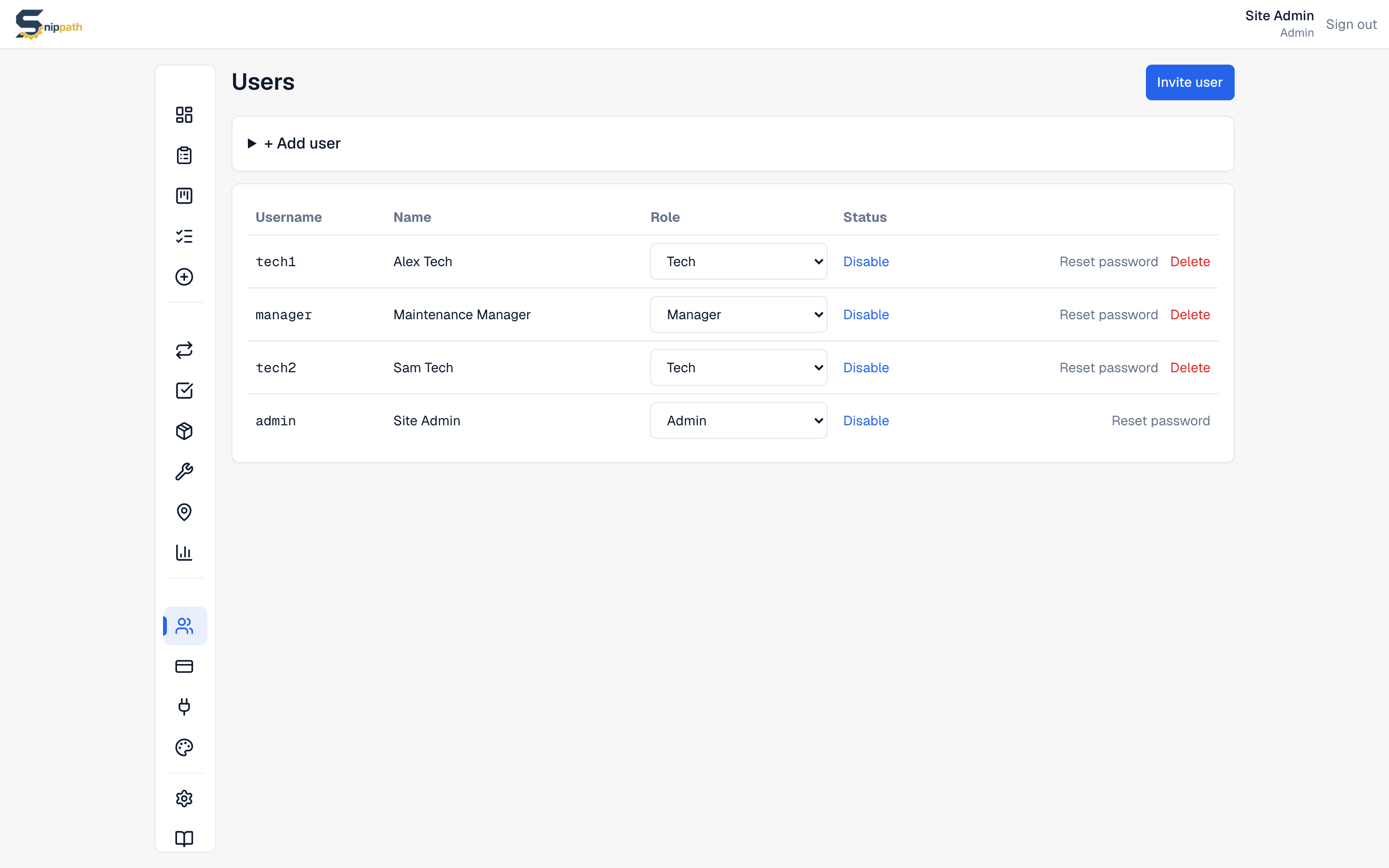
+ Add user creates an account on the spot with a username and an initial password (8+ characters) you hand to them — handy for techs without email.
Everyday actions
- Change a role — pick Tech, Manager, or Admin from the dropdown on the user's row. Takes effect right away; no email is sent. See Roles & permissions.
- Disable — blocks sign-in without touching any data. Fully reversible with Enable. This is the right move for someone who left.
- Reset password — set a new password for anyone directly from their row.
Deleting a user (Admins only)
Deletepermanently removes the account. Issues, comments, photos, and parts they logged all stay, attributed to a removed user, and any issues assigned to them become unassigned. You can't delete yourself, and deletion can't be undone — prefer Disable unless you truly need the account gone.
Plan seat limits
Free allows 2 users and Starter 10; Pro and Business are unlimited. Pending invites count toward the cap — an unaccepted invite still holds a seat until it expires or you cancel it. At the cap, new invites and accounts are refused until you free a seat or upgrade via Billing.
Your own account
Everyone can change their own email and password from Settings. Two-factor authentication isn't available yet.