
Triage
Triage is the Manager/Admin job: look at incoming tickets, decide who works on what, and keep things moving. Snippath gives you two views of the same tickets — a drag-and-drop Board and a filterable All issueslist. Techs don't see either; their home is My assignments.
Statuses
- Open — new, unassigned. The triage queue.
- Assigned — has an owner who hasn't started.
- In progress — actively being worked.
- Blocked— waiting on a part, vendor, or approval. Moving here requires a short note saying what's blocking.
- Done — completed. Kept for history and reports.
- Cancelled— closed without doing the work (duplicate, invalid). Requires a note. Done and Cancelled tickets stop counting toward the Free plan's active-issue limit.
The Board
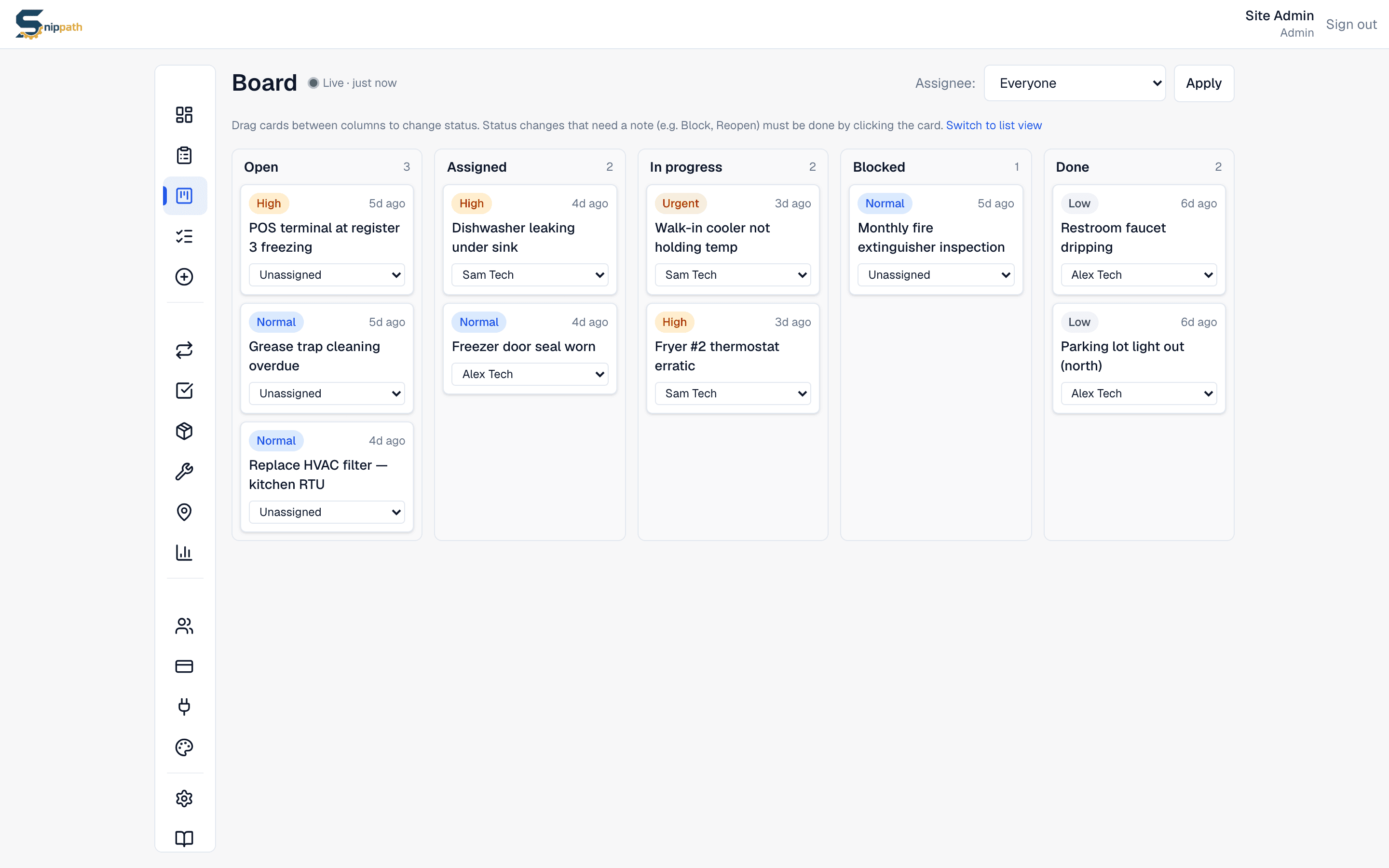
Sidebar → Board. One column per status (Cancelled tickets are hidden, and Done cards drop off after 14 days to keep the board tidy). Two things you can do directly on a card:
- Assign — every card has an assignee dropdown. Picking a person on an Open card assigns it and moves it to Assigned in one step; the assignee gets a push notification.
- Drag between columns — changes status. Transitions that need a note (into Blocked, out of Blocked, reopening Done) prompt you for it before the move happens.
Click a card's title to open the full ticket. The board auto-refreshes every few seconds, so it works as a wall display.
The All issues list
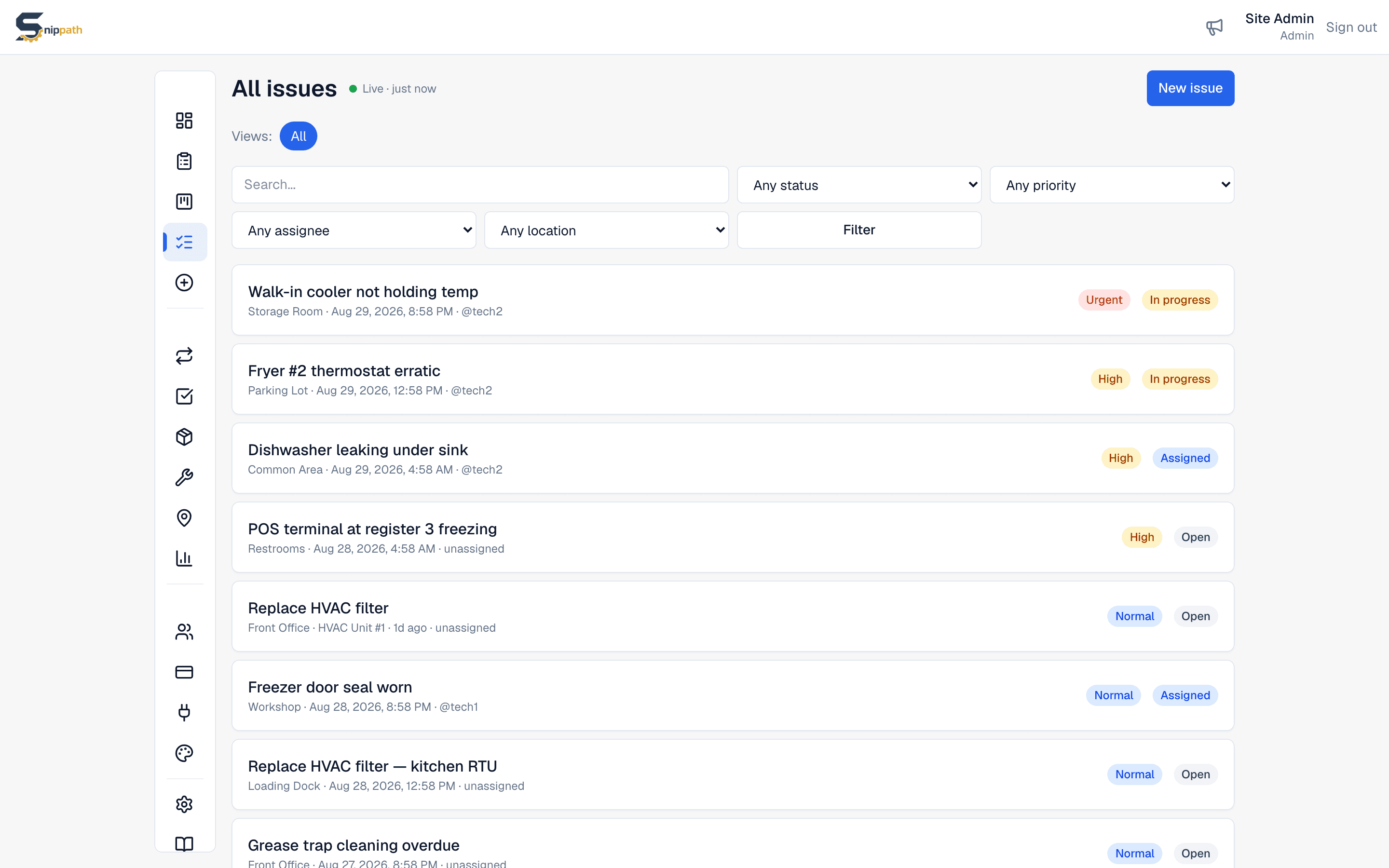
Sidebar → All issues. Filter by status, priority, assignee (including "Unassigned"), or location (picking a parent location includes its sub-locations), and search across titles and descriptions. This is also the only place to see Cancelled tickets and Done tickets older than the board's 14-day window.
Saved views Pro+ — on Pro and Business plans, set any filter combination and click + Save current viewto keep it as a named chip above the filters ("Urgent + open", "Unassigned", your own triage queue). Views are personal — each manager keeps their own set, up to 20.
Assignment habits that work
- One ticket, one owner. If two people collaborate, one owns it and the other watches it.
- Use priority sparingly. If everything is High, nothing is. Urgent sends Managers a distinct alert — reserve it for drop-everything problems.
- Don't triage in your head.If a ticket sits in Open, either assign it or comment why it's waiting.
Watching tickets
Every ticket has a Watch button at the top. Watchers get a push notification for every new comment. The reporter and assignee are added as watchers automatically, and commenting on a ticket makes you a watcher too.