
Equipment & assets
Equipment (also called "assets") lets you tag issues to a specific physical thing — an HVAC unit, fryer, generator — and see every issue, part, and labor hour rolled up against it. Managers and Admins manage equipment from Equipmentin the sidebar; it's available on every plan.
Adding equipment
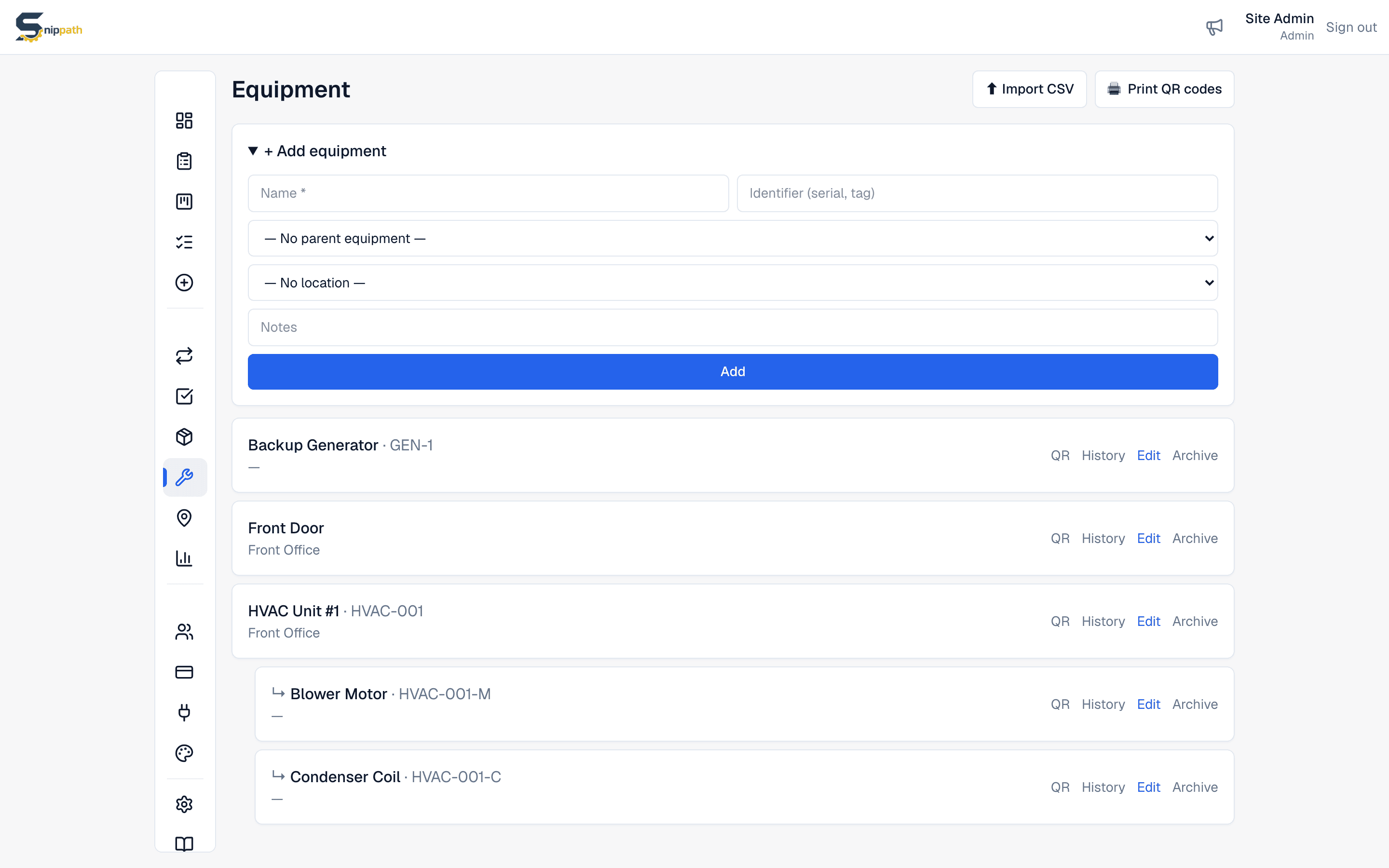
Click + Add equipment and fill in:
- Name — short and specific: "HVAC Unit 3 (rooftop, east)".
- Identifier (optional) — serial number or asset tag.
- Parent equipment (optional) — make it sub-equipment of a bigger machine: a fire panel's call points, a production line's stations. One level deep — sub-equipment can't have its own children.
- Location (optional) — where it lives. See Locations.
- Notes (optional) — anything the next tech should know.
Bulk import from CSV
Onboarding from a spreadsheet? Click Import CSV. The file needs a header row and a name column; optional columns are identifier, location, and notes(a template is downloadable on the import page). Validation is all-or-nothing — if any row fails, nothing imports. Rows matching an existing name + identifier are skipped, and locations referenced by name are created automatically. There's no parent column yet — set parent equipment in the UI after importing. Max file size: 2 MB. Export CSV (next to Import) downloads the whole register — same columns as the import format plus parent, active, and id — for backups or editing in a spreadsheet.
QR labels
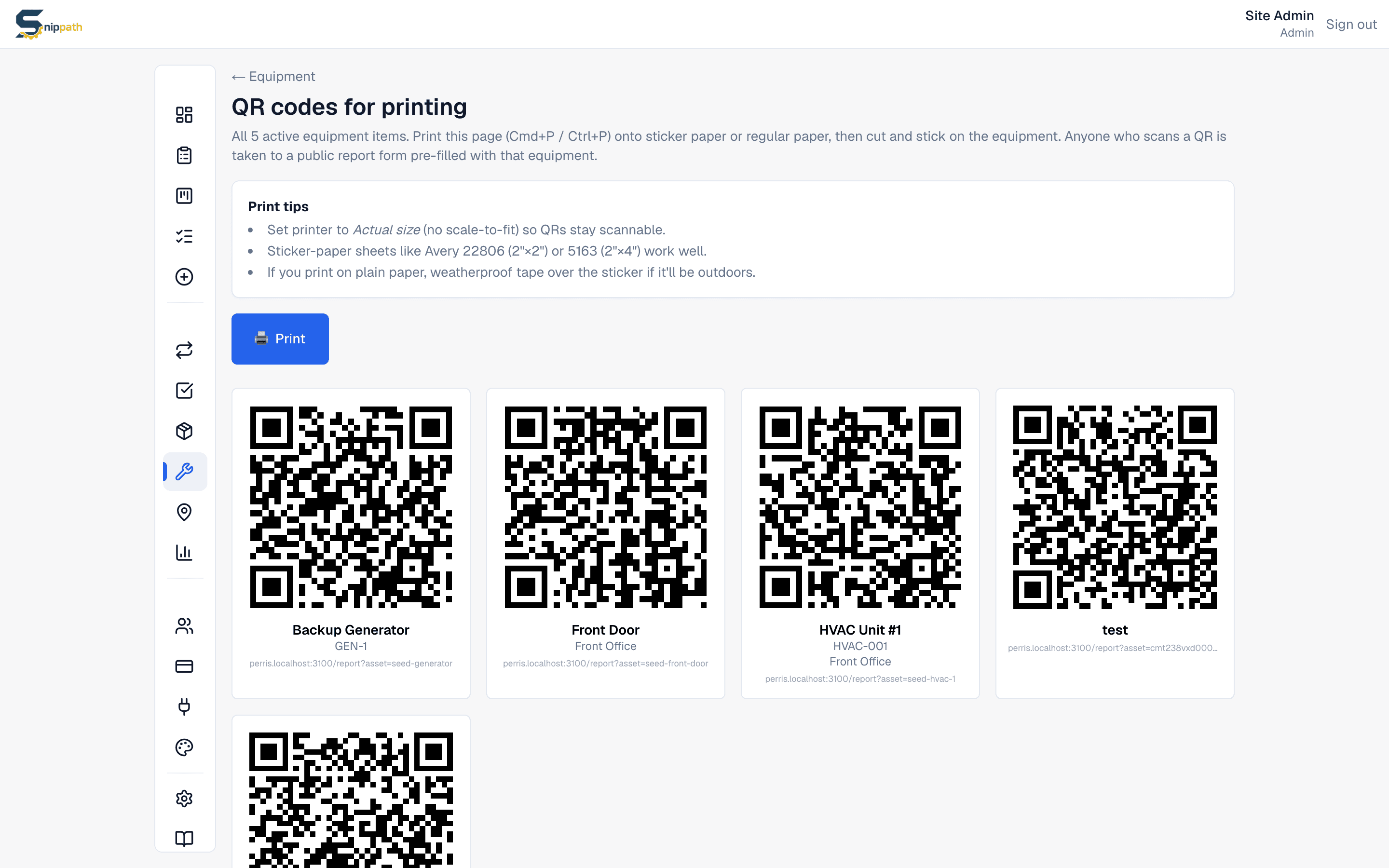
Every asset gets a QR code that opens the public report form pre-filled with that equipment — anyone who scans it can file an issue, no account needed. Three ways to print:
- Print QR codes on the Equipment page prints a sheet for all active equipment.
- The QR link on any row, or the QR label button on an asset's detail page, prints just that one.
- Right after adding equipment, a Print QR label shortcut appears — register, print, stick, done.
Each label shows the QR code, name, identifier, and location (plus your logo on the Business plan — see Billing & plans). The print sheet offers three label sizes — Small (~1.2″) drops the logo and location so it stays legible on small assets. Print at actual size (no scale-to-fit); sticker sheets like Avery 22806 (2"×2") or 5163 (2"×4") work well.
The equipment detail page
Click any asset (or its History link) to see totals for issues, currently open work, completions, and labor logged, plus total parts used and their cost, and the issue history (the latest 200). Use the cost rollup to spot equipment that costs more to keep alive than to replace.
Archiving
Retired equipment gets Archive — it leaves the pickers and the QR sheet but keeps its full history, and Restoreundoes it. There is no delete for equipment, and equipment with active sub-equipment can't be archived — archive or move the sub-equipment first.