
Quick start
Get a Snippath workspace up and running in about 10 minutes. By the end of this page you'll have an account, one teammate added, and your first maintenance ticket filed.
1. Create your workspace
Go to snippath.com/signup and fill in the form:
- Organization name — usually your company or team name.
- Workspace URL — the subdomain your team signs in at, e.g.
acme.snippath.com. The form checks availability as you type. Pick carefully — there's no self-serve rename later. - Your admin account — name, email, username, and a password (8+ characters). You can sign in with either the username or the email; the email is also used for password reset — see Signing in & recovery. The first account is automatically the workspace Admin.
After your first sign-in, a short onboarding wizard asks which modules you want in the sidebar (Equipment, Locations, Parts, Recurring maintenance, Checklists) and offers to create your first location and piece of equipment.
2. Invite one teammate
From the sidebar, go to Users → Invite user. Enter their email, full name, and a role — Maintenance Tech, Maintenance Manager, or Admin (see Roles & permissions). They get an email with a link, valid for 7 days, to set their own username and password. Full details in Invite your team.
On the Free plan a workspace holds 2 users and up to 25 active issues — paid plans raise or remove both limits.
3. File your first ticket
Click New issue in the sidebar and fill in:
- Title and Description— both required. Keep the title short ("HVAC unit 3 not cooling") and put the detail in the description.
- Location and Equipment — optional dropdowns (shown when those modules are on).
- Priority — Low / Normal / High / Urgent. Defaults to Normal.
- Assign to — Managers and Admins can assign immediately or leave the ticket open for triage.
- Photos — Take photo opens the camera, From library lets you pick several at once.
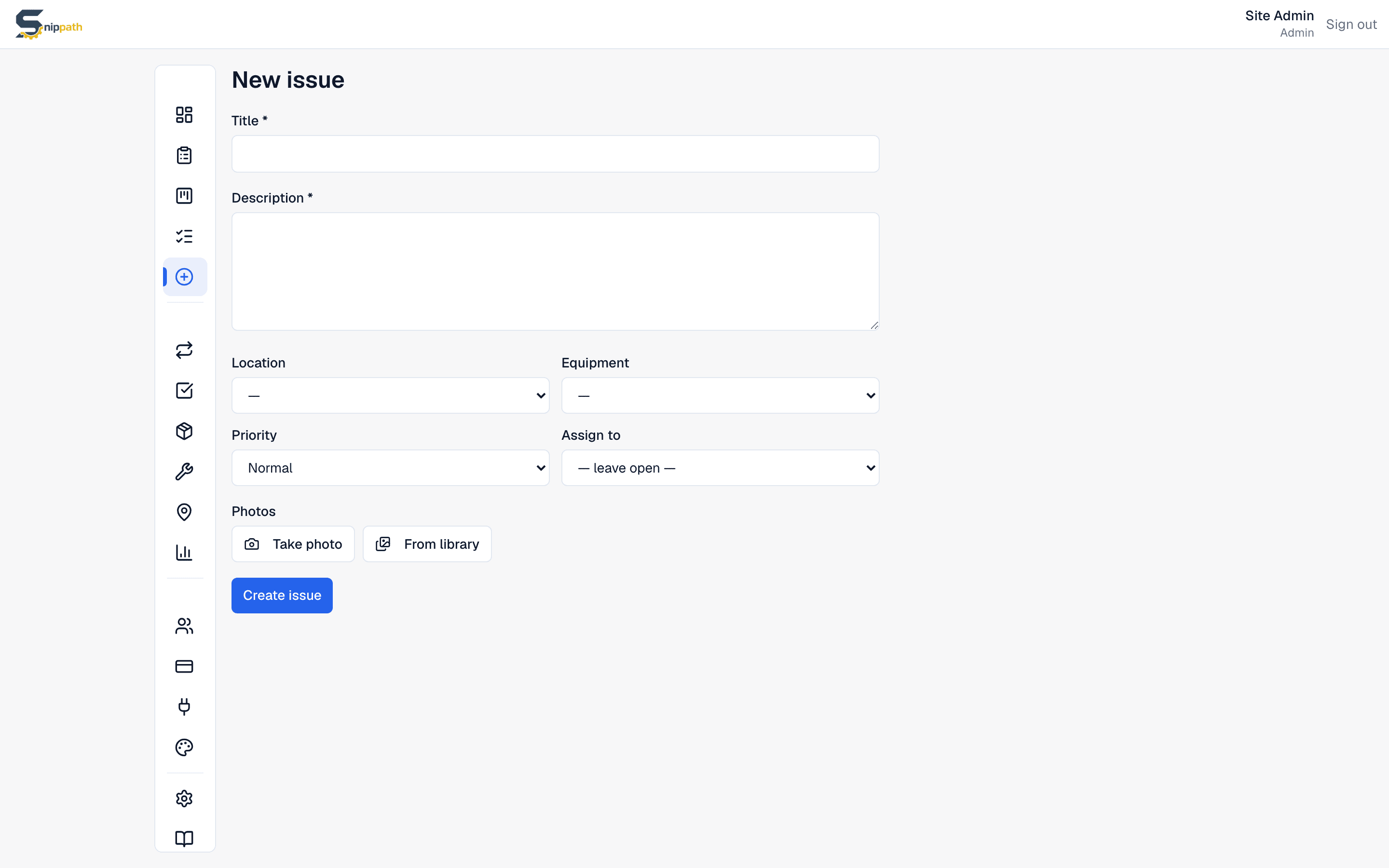
Submit and you land on the ticket's detail page. Managers see it on the Dashboard, Board, and All issues; the assignee (if any) sees it in My assignments and gets a push notification.
4. Put Snippath on your phone
Snippath works in any browser, but it's designed phone-first. There's a native iOS app on the App Store, and Android installs as an app from Chrome. See Install on your phone.
What to do next
- Add Equipment and Locations so tickets can be tagged precisely — and print QR stickers for scan-to-report.
- Automate preventive maintenance with Recurring tasks.
- Standardize inspections with Checklists.
- Track stock with Parts inventory.