
Locations
Locations are the sites, buildings, or areas where work happens. Tagging issues and equipment with a location tells you at a glance where problems cluster. Managers and Admins manage them from Locations in the sidebar; available on every plan.
Adding a location
Click + Add location and enter:
- Name — "Main warehouse", "Back kitchen", "3rd floor east". Names must be unique among their siblings (two buildings can each have a "Floor 1").
- Parent (optional) — nest it inside a top-level location: "Building A" → "Floor 1". One level deep — a sub-location can't have sub-locations of its own.
- Notes (optional) — gate codes, parking, contact person.
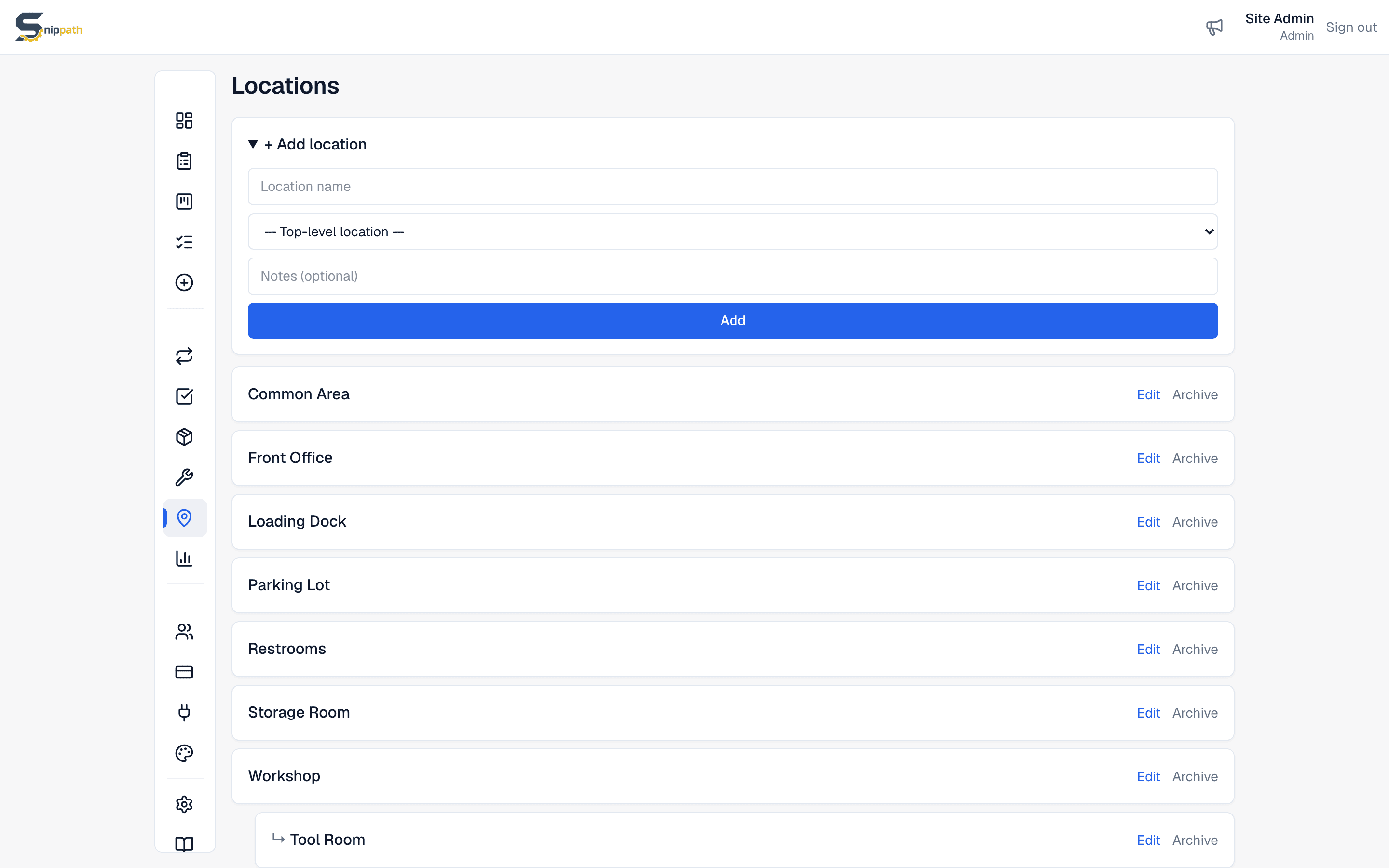
Where locations show up
- On issues — the New issue form has a location picker, and reports filed through the public form can name a location in free text.
- On equipment — each asset can be assigned a location, which then appears on its QR label and issue rows.
- In reports — the Reports page has a Top locations breakdown (sub-locations show as "Building A / Floor 1"), and the CSV export includes a location column.
- On the All issues list — the location filter narrows the list to one location; picking a parent includes all of its sub-locations. Combine it with status, priority, assignee, or search, and save the combination as a Saved view.
How granular should locations be?
Match how your team actually talks. If you say "the freezer in the back kitchen" out loud, the location is "Back kitchen" — not the whole building, not the shelf. One location per area with its own set of equipment is usually right.
Archiving
Closed a site? Archive the location. It keeps all its history and stops appearing in pickers for new issues and equipment; Restorebrings it back. Locations can't be deleted, and a location with active sub-locations can't be archived — archive or move the sub-locations first.