
Parts inventory
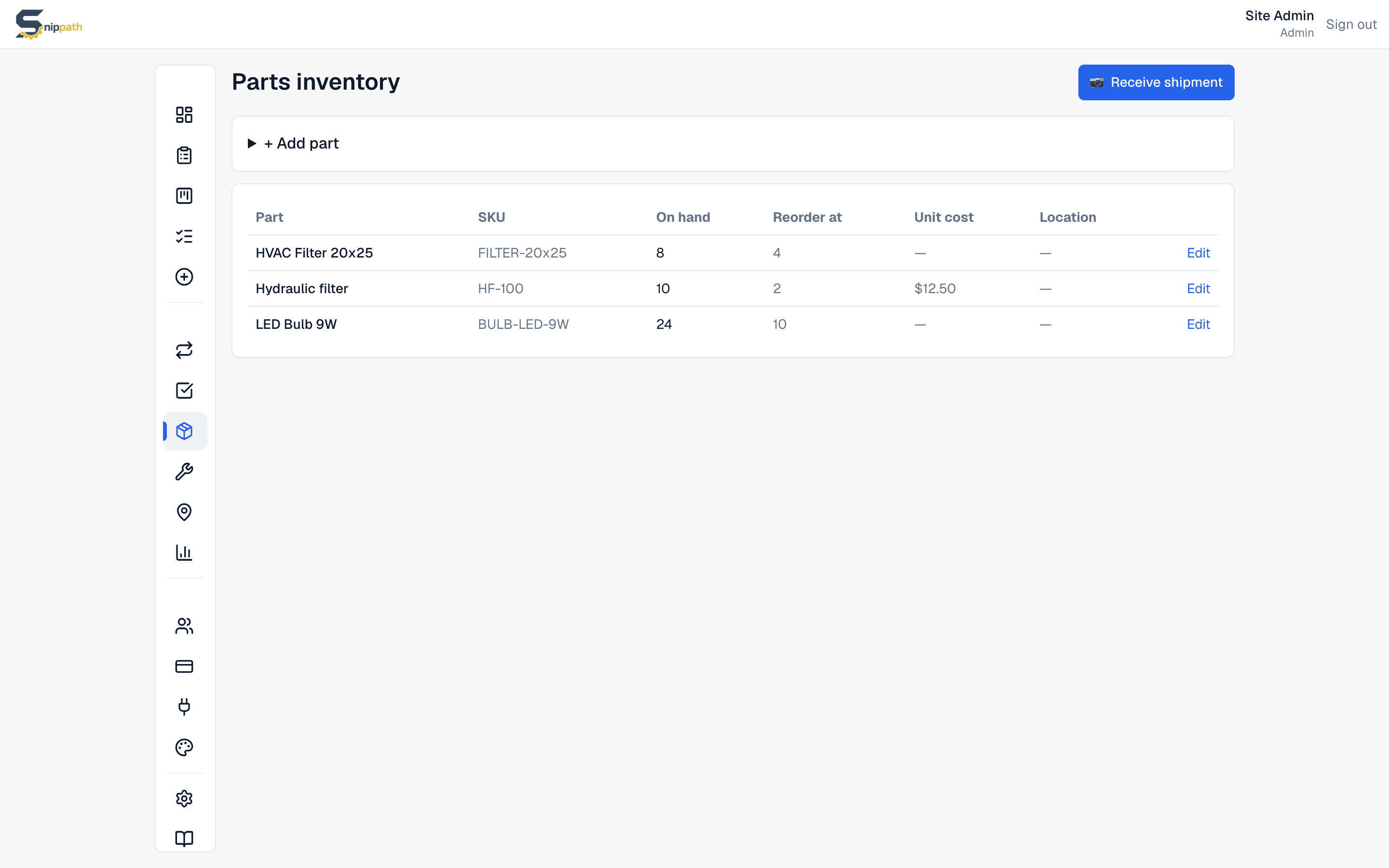
Track the parts you stock, what they cost, and which issues used them. Stock decrements automatically when techs log usage on an issue.Starter+
Who can do what
Everyone can view Parts inventory. Managers and Admins add, edit, and receive parts. The assignee of an issue (or any Manager) logs usage from the issue page.
Adding a part
Click + Add part and fill in:
- Name — descriptive enough to find in a picker: "20x25x1 furnace filter (MERV 13)".
- SKU (optional) — this doubles as the barcode: scans during receiving match against it, so use the UPC/EAN if you want scanning to work.
- On hand and Reorder at — current count and the level that triggers a low-stock warning.
- Unit cost ($) (optional) — used for cost rollups on equipment and in Reports.
- Storage location and Notes (optional, free text).
Receiving stock by barcode
When a shipment arrives, click Receive shipment:
- Your camera opens. Point it at each item's barcode.
- Every scan adds +1 to that part's stock instantly — scan a box three times to add three. A running tally shows what you've received.
- Unknown barcode? Snippath looks it up in public product databases (Open Food Facts, UPCItemDB) and offers a pre-filled form to create the part on the spot — or hit Skip and keep scanning.
Logging usage on an issue
On the issue page, the Log parts usedsection lets you pick a part (the dropdown shows how many are on hand), enter a quantity, and log it. Stock decrements immediately — if you ask for more than is on hand, the log is refused. The usage appears in the issue's Parts used list and timeline, and the cost rolls up on the linked equipment and in Reports.
Low stock and fixing counts
Parts at or below their reorder level are highlighted in red in the table — that's your purchasing list. If a count drifts (someone grabbed a part without logging it), click Edit and correct On handdirectly. There's no adjustment history — the new number simply replaces the old one.
Archiving and deleting
Archive hides a part from pickers while keeping its usage history; Restore brings it back. Delete is permanent and only allowed for parts that have never been used on an issue — otherwise archive instead.
Snippath doesn't do purchase orders, suppliers, or automatic reordering — it tells you what's low; ordering is up to you.