
Notifications
Snippath sends push notifications to your devices when something needs your attention, and can post workspace activity into a Slack or Microsoft Teams channel. Push is included on every plan; there are no email notifications yet.
What triggers a push
- You're assigned a ticket — whether at creation or during triage.
- A new issue is filed(Managers/Admins) — every new ticket, from inside the app or the public report form, pings all active Managers and Admins. Urgent-priority tickets arrive with a distinct "URGENT issue reported" alert. You're never pinged about tickets you created yourself unless you turn on "Also notify me about issues I create myself" in Settings — handy when you're evaluating alone and want to see the notifications your team would get. A second toggle, "Notify me about all activity", opts you into pushes for every assignment change, comment, and status change in the workspace — not just tickets you watch.
- A watched ticket changes status— including "Completed" when a job is marked done. The person making the change is never pinged about their own action.
- Someone comments on a ticket you watch — the reporter and assignee watch automatically, commenting adds you as a watcher, and the Watch button on any ticket opts you in manually.
Just as important, what doesn't notify:
- You never get pinged for your own actions — reporting a ticket doesn't notify you, and your own comments don't either.
- Plain status changes (Start work, Mark done, …) don't push to watchers. They do appear in channel integrations (below) and in the ticket's Activity timeline.
Enabling push on a device
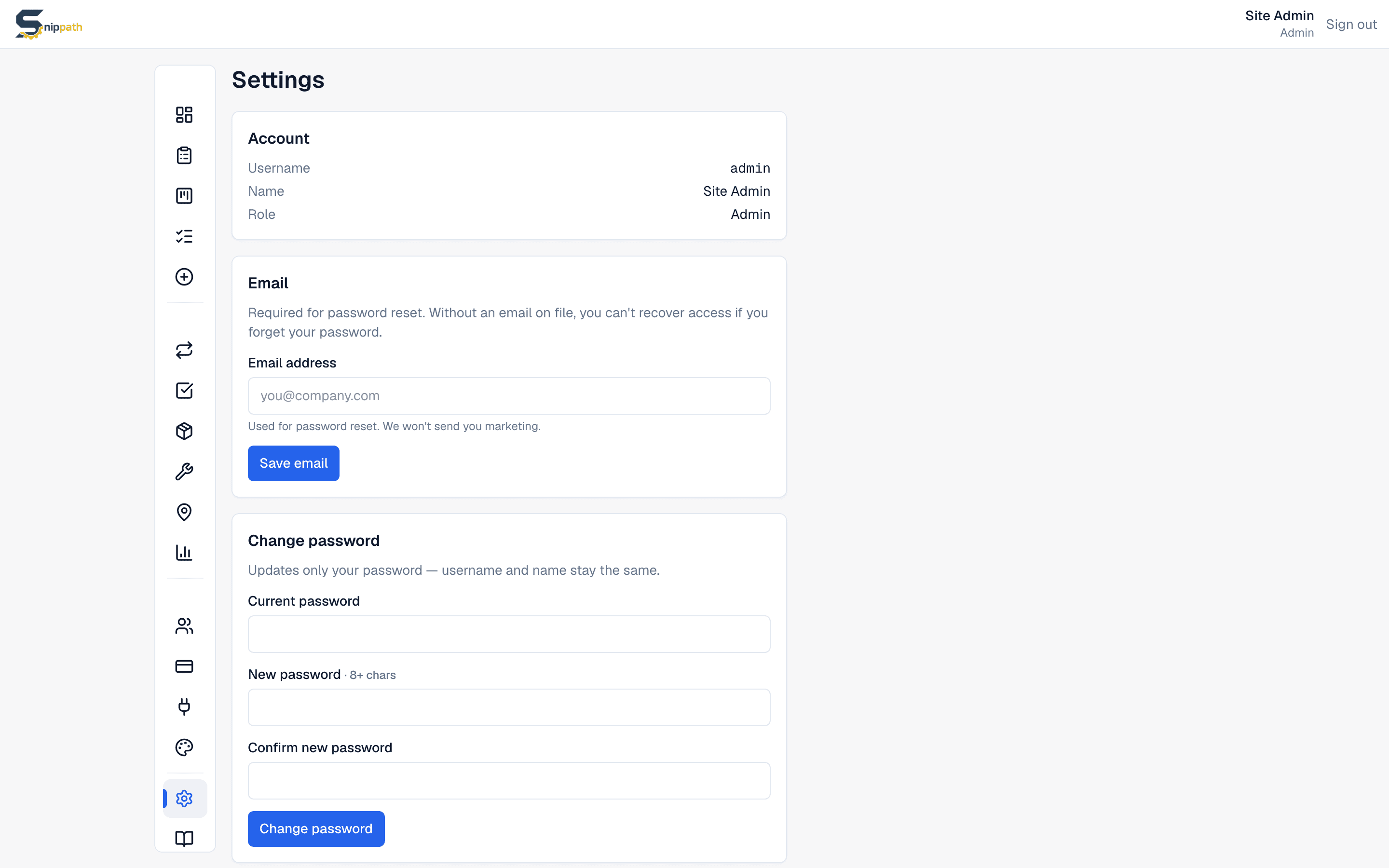
Push is per-device: enable it on each phone or computer where you want alerts. Go to Settings → Push notifications → Enable push notifications, then allow when the OS asks. Tapping a notification opens the relevant ticket.
- iOS app (App Store) — native push. To turn it off later, use iOS Settings → Snippath → Notifications.
- Browser or installed web app — web push, with a Disablebutton right in Snippath's settings. Works in Chrome, Edge, and Firefox on desktop and Android.
Slack and Teams channels Business+
Admins can post workspace activity to a channel: go to Integrationsin the sidebar, paste a Slack or Teams incoming-webhook URL, choose which events to send, and send a test. Available events: new issues, status changes, urgent issues & guest reports (all on by default), plus assignments and comments (off by default).
Per-event email notifications aren't shipped yet. Snippath sends email only for account plumbing: workspace invites and password resets.
Quiet hours
There's no in-app quiet-hours setting — use your phone's Do Not Disturb / Focus modes. Snippath notifications respect them like any other app's.