
Reporting an issue
There are three ways to file a maintenance ticket: from inside the app, by scanning a QR sticker on a piece of equipment, and via the public report form — no login required for the last two.
From inside the app
Any signed-in user — Tech, Manager, or Admin — can click New issue in the sidebar. Fields:
- Title(required) — short summary, e.g. "Walk-in freezer not holding temperature".
- Description(required) — symptoms, when it started, what you've already tried.
- Location and Equipment(optional) — shown when those modules are enabled. Linking equipment rolls the ticket into that asset's history.
- Priority — Low / Normal / High / Urgent. Defaults to Normal.
- Assign to (Managers/Admins only) — assign directly or leave open for triage.
- Apply a checklist(optional) — copies a checklist template's steps onto the ticket, if any templates exist.
- Photos — two buttons: Take photo opens the camera; From library opens your photo picker with multi-select. Thumbnails preview below the buttons, each with an × to remove it before submitting.
Every new issue pings Managers and Admins with a push notification — you don't need to chase anyone to say you filed it.
Via the public report form
Anyone with the link your-workspace.snippath.com/report can file a ticket without an account — great for staff without seats, tenants, or common-area equipment.
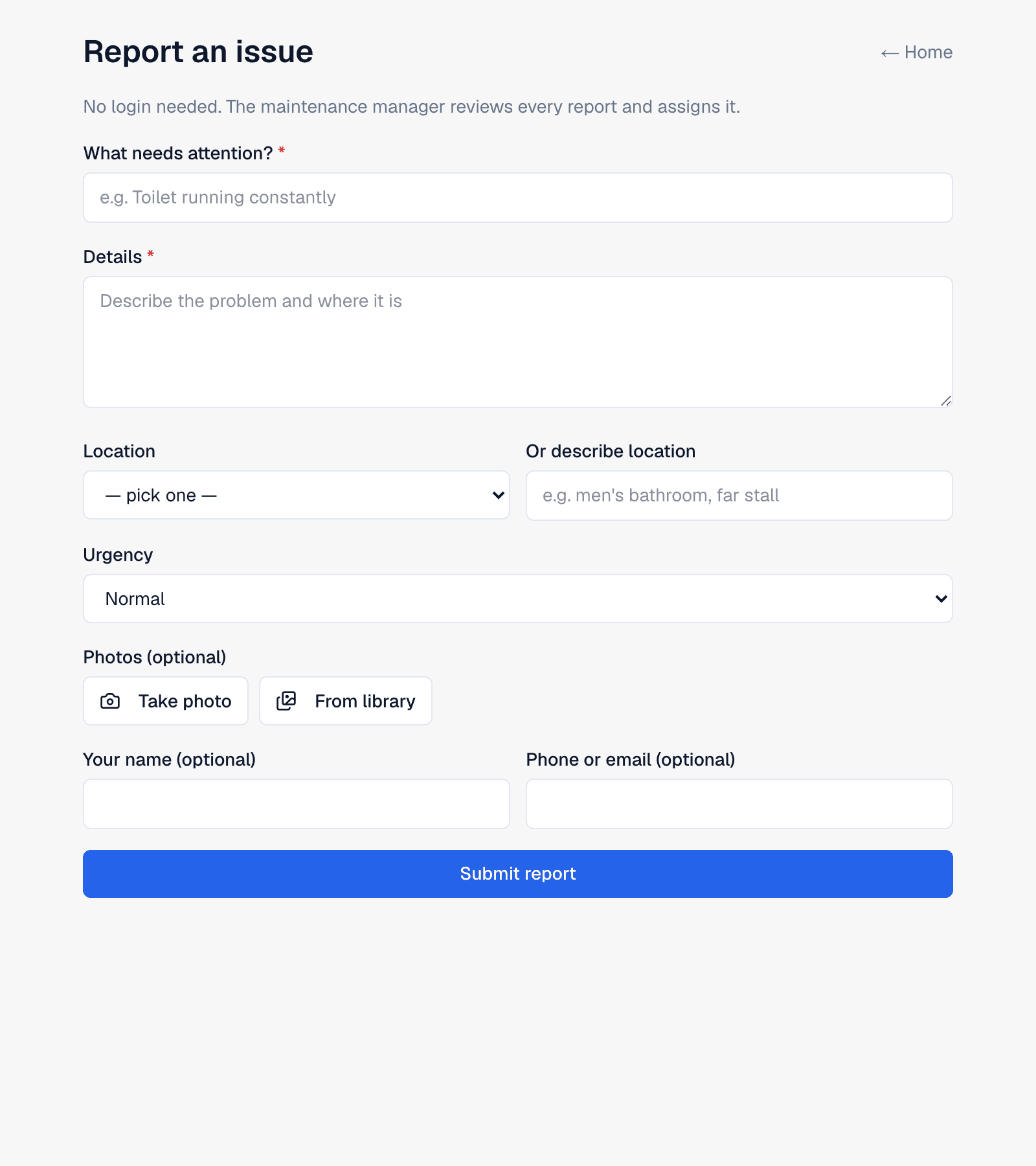
The reporter describes the problem, picks a location from the list (or types one free-form), sets an urgency, optionally adds photos with the same two-button picker, and can leave their name and contact info so the team can follow up. The report lands unassigned in the triage queue at whatever urgency they chose, and Managers get a push notification.
By scanning a QR code
Managers and Admins can print QR stickers from Equipment → Print QR codes (see Equipment & assets). Stick them on the machines. Scanning one opens the public report form with that equipment pre-selected and its location pre-filled — the person just describes what's wrong and taps Submit. The ticket arrives already linked to the right asset. The print sheet has three label sizes — Large (~2.4″), Medium (~1.8″), and Small (~1.2″) for small assets; Small drops the logo and location so the label stays legible.
Tips for good tickets
- Start the title with the equipment or location: "HVAC Unit 3: grinding noise" beats "Loud noise".
- Describe the symptom, not your diagnosis — you might be wrong about the cause, and the tech will read the title first.
- Put urgency in the Priority field, not the title. Urgent-priority tickets get a distinct alert to Managers.
- Attach a photo whenever there's anything to see. It's the single highest-value field on the form.